Upgrade Your Gaming
Download Now
Download GeForce Experience App for Windows
 A Comprehensive Guide to GeForce Experience Installation Procedure
New Updates

Major Update
With the newest version of the GeForce Experience software, we're bringing a set of amazing new tools and improvements. Check out the main updates...

Latest Enhancements
Our upcoming update for GeForce Experience will bring many fresh improvements designed to greatly improve your play style. Find the details below...

Bug Fixes
We are happy to offer a quick glimpse of the next patch for GeForce Experience, filled with a few fixes and better options. Here is the full list...
Download GeForce Experience & Install on Windows
Install NowElevate Your Graphics: Install GeForce Experience App for Free (Latest Version)
With the evolution of advanced applications focused on elevating the excitement of gaming, the world of interactive entertainment has been utterly transformed. A standout amongst these applications is the GeForce Experience for Windows 10 download, which has been instrumental in driving this revolution, offering unparalleled graphics and performance enhancements that take the gaming experience to unprecedented heights. This GeForce Experience gaming software provides a comprehensive bridge between hardware and software. One such go-to application is the GeForce Experience app, which acts as a central hub for GeForce Experience GPU management. In this review, we'll unveil the key features of this application, expound on the installation process, and unearth the compatibility with various Windows versions.
User Interface: Sleek and Intuitive
The sleek, modern, and intuitive design of GeForce Experience newest version has been praised by users, who find its uniqueness a standout feature in the current tech landscape. Its interface, a perfect blend of aesthetic appeal and user-friendly functionality, has earned it high acclaim in the digital community. Navigating through the application is seamless, even for novice users who have just opted for GeForce Experience app download. The interface has distinct sections making the process of optimizing the games and altering the settings much easier. Furthermore, the GeForce Experience dashboard customization allows users to tailor their view to highlight the most used tools, while the GeForce Experience visual settings ensure that the software looks stunning on any monitor resolution.
Usability: Enhancing The Gaming Experience
The application does not just boast an appealing interface, it also excels when it comes to usability. Particularly, the application is easy to GeForce Experience install with a straightforward setup process. On Windows 7, Windows 8, Windows 10, and even the latest Windows 11, gamers can conveniently GeForce Experience on Windows 7/8/10/11 without major compatibility issues. To provide a clearer overview of system support, refer to the data below:
| Operating System | GeForce Experience compatibility status |
|---|---|
| Windows 7 | Fully Supported |
| Windows 8 | Fully Supported |
| Windows 10 | Fully Supported |
| Windows 11 | Fully Supported |
Functionality: Essential Gaming Companion
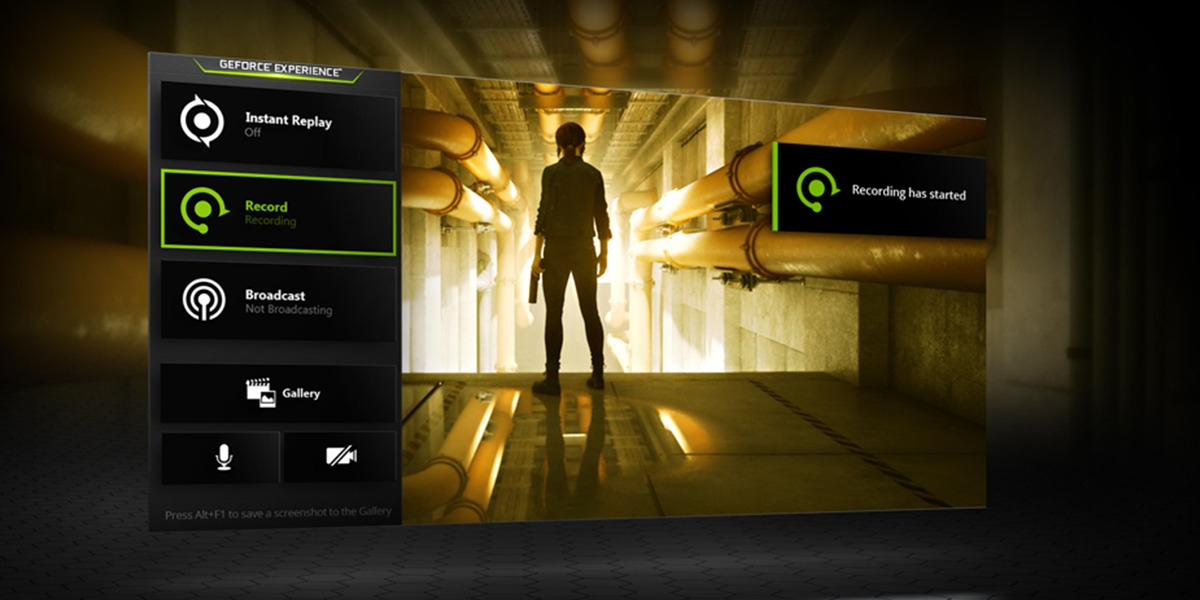
When it comes to functionality, the application rises above the ordinary, becoming an essential companion for any gaming enthusiast. With the GeForce Experience download in place, gamers are presented with a suite of features aimed at enhancing the gaming experience. This GeForce Experience user interface streamlines access to powerful tools:
- GeForce Experience ShadowPlay recording: Capture high quality gameplay and highlights without sacrificing system performance.
- GeForce Experience game filters: Apply real time visual adjustments to change the atmosphere and clarity of your games.
- GeForce Experience driver updates: Automatically detect and install the latest NVIDIA drivers for maximum stability.
- GeForce Experience FPS optimization: Automatically adjust game settings to achieve the best balance between visual quality and frame rate.
From automatic game settings optimization to gameplay recording, this application has all it takes to redefine your gaming experience. GeForce even goes an extra mile to keep your gaming rig updated with the latest drivers, ensuring that your GeForce Experience download for Windows 10/11 operates at optimal performance.
"The GeForce Experience performance boost is truly remarkable, allowing my hardware to run modern titles at much higher settings than I expected."
Support: Dedicated and Reliable
Another impressive aspect of the application is the high-level of support offered to users. Irrespective of whether the user is on Windows 10 64-bit or any other version, GeForce Experience on Windows 10 64-bit ensures you're not left in the dark when confronting any issue. The availability of GeForce Experience technical support means that users can quickly find solutions to complex problems. Whether you are dealing with a minor bug or need GeForce Experience error resolution for a specific driver conflict, the community and official resources provide a safety net. Simply put, GeForce Experience download for PC guarantees users a smooth ride filled with remarkable gaming experiences.
"I appreciate how the GeForce Experience user interface makes it so simple to keep my system updated without digging through manual menus."
Technical Requirements
To ensure the best results, it is important to review the GeForce Experience system requirements before starting the process. Most modern NVIDIA GPUs are fully compatible, and the GeForce Experience software installation guide makes the setup trivial. By ensuring your hardware meets the minimum specifications, you can fully leverage the power of the software and maintain a stable environment for all your favorite titles.
Conclusion: A New Dawn in Gaming
This review merely presents a glimpse of what to expect when you opt for GeForce Experience for free. The application continues to redefine the gaming experience on numerous fronts. It's sleek, user-friendly, incredibly functional and has reliable support in place. By integrating all these tools into a single GeForce Experience software ecosystem, NVIDIA has created a powerful utility for the modern gamer. The GeForce Experience overall utility is evident in how it simplifies complex GPU tasks into a few clicks. Best of all, GeForce Experience free to download presents a world of possibilities, helping gamers to get the most out of their favorite games.
Download GeForce Experience & Install on Windows
Install NowGeForce Experience for Windows: FAQ Corner
-
What is the process to install app on Windows 10?
To accomplish this task, one has to download the software exe. After downloading, the process to install GeForce Experience takes a few simple steps. Start by launching the downloaded exe file, follow the on-screen instructions and you should have access to the software. The all-in-one tool provides updates regarding drivers, optimizes gaming settings and offers a platform for recording/streaming your gaming-era achievements.
-
How does one effectively use the GeForce Experience app?
GeForce Experience has some excellent features for gaming enthusiasts. With its intuitive interface, you can catch updates as soon as they arrive, as the app alerts on the availability of new drivers. Moreover, the Shadow Play enables you to record your gaming sessions, should you wish to save and relive those magical gaming moments.
-
What are the requirements to download for Windows 10?
Before preparing for the download GeForce Experience for Windows 10, it's imperative to check the readiness of your system. A computer with a minimum of 2GB disk space is essential, along with a CPU that matches or surpasses the performance of Intel’s Core i3-2100 3.1GHz or AMD’s Phenom II X4 945. Your PC should also have a DirectX 11 compatible graphics card. Having these hardware requirements in place will ensure a smooth process as you embark on downloading and installing the software, promising you an optimized gaming experience.
-
How can I optimize my games with GeForce Experience?
The GeForce Experience tool has a fantastic feature called "Game Optimization". This function allows the software to optimize your settings based on your computer's components and make the gaming experience as smooth as possible. However, ensure that your games are on the GeForce Experience’s supported games list to use this feature.
-
How can I get GeForce Experience working if I face issues?
If you're facing issues with the software, try updating the drivers. However, if the problem persists, you might want to consider reinstalling the software. Remember, always get GeForce Experience from a trustworthy source to avoid issues related to security or software authenticity. After successfully getting the app, navigate to the drivers tab, click on the 'Check for updates' button for updating the drivers and improving the app’s performance.